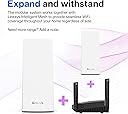
🚀 Mesh Your Home, Master Your Network — Stay Connected, Stay Ahead!
The Linksys Velop WHW0303 is a tri-band AC2200 WiFi 5 mesh system designed to blanket up to 6000 sq ft with fast, reliable internet. Supporting over 60 devices simultaneously, it leverages MU-MIMO technology for efficient bandwidth distribution. Setup is streamlined via the Linksys app, while robust security features including WPA2, SPI firewall, and Apple HomeKit compatibility ensure a safe, future-ready smart home network.


| ASIN | B01N5M9NNB |
| Antenna Location | Home, Streaming |
| Best Sellers Rank | 4,051 in Computers & Accessories ( See Top 100 in Computers & Accessories ) 15 in Whole Home & Mesh Wi-Fi Systems |
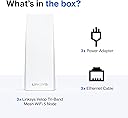
| Box Contents | 3 |
| Brand | Linksys |
| Brand Name | Linksys |
| Colour | White |
| Compatible Devices | Gaming Console, Mobile Device, Personal Computer, Security Camera, Smart Television, Smart Thermostat, Streaming Device |
| Compatible devices | Gaming Console, Mobile Device, Personal Computer, Security Camera, Smart Television, Smart Thermostat, Streaming Device Compatible devices Gaming Console, Mobile Device, Personal Computer, Security Camera, Smart Television, Smart Thermostat, Streaming Device See more |
| Connectivity Protocol | Wi-Fi |
| Connectivity Range | 6000 Square Feet |
| Connectivity Technology | Wi-Fi |
| Control Method | App |
| Coverage | 6000 square feet |
| Customer Reviews | 4.2 out of 5 stars 2,204 Reviews |
| Data Transfer Rate | 867 Megabits Per Second |
| Frequency | 2.4 GHz |
| Frequency Band Class | Tri-Band |
| Frequency band class | Tri-Band |
| Has Internet Connectivity | Yes |
| Has Security Updates | Yes |
| Is Modem Compatible | No |
| Item Dimensions L x W x H | 25.5L x 11.5W x 39.5H centimetres |
| Item Weight | 0.5 Kilograms |
| LAN Port Bandwidth | 867 megabits_per_second |
| Manufacturer | Linksys |
| Manufacturer Part Number | WHW0303-UK |
| Maximum Upstream Data Transfer Rate | 867 Megabits Per Second |
| Model Name | WHW0303 |
| Model Number | WHW0303-UK |
| Model name | WHW0303 |
| Number of Items | 3 |
| Number of Packs | 3 |
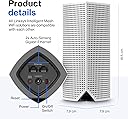
| Number of Ports | 2 |
| Operating System | Windows |
| Other Special Features of the Product | Parental Control |
| Product Warranty | 2 Year Limited Warranty |
| Router Network Type | Wireless |
| Security Protocol | WPS |
| Special feature | Parental Control |
| UPC | 745883728473 |
| Unit Count | 1.0 count |
| Wi-Fi Generation | Wi-Fi 5 |
| Wireless Compability | 2.4 GHz Radio Frequency, 802.11a, 802.11ac, 802.11b |
| Wireless communication standard | 2.4 GHz Radio Frequency , 802.11a, 802.11ac, 802.11b |
R**D
The best WiFi network I've ever had
I thoroughly researched the market before buying this product, looking at improving WiFi coverage around the house and finally decided to order the set of three units (AC6600). This system is a bit unusual and as a result some people, even those with network configuration experience, may find themselves confused when they set it up. I read several reviews complaining about what you cannot do with this system, however I found that it works very well for my needs and in my opinion it can satisfy the needs of most average users. So here is how it works: First of all, this system is not a modem and has to be connected to a device that can function as a modem, connect to the internet, acquire a public (WAN) IP address and then allocate a local (LAN) IP address to the mesh network. Most, if not all, the modems/routers supplied by the usual internet providers can do this. If you are looking at buying this product, you most likely already have a modem and WiFi router at home. To connect the Velop, just follow the incredibly basic and simple instructions. Essentially the process consists of creating an account with the manufacturer, download an app to your mobile phone or tablet (I use both the Android and Apple versions and they both work seamlessly), connect one of the three bases to the modem/router with the provided network cable and follow the process as instructed. One key element is to be patient and once the first base is configured, adding the other bases to create the mesh network is straight forward. Note that the Velop will create its own WiFi network, separate to the WiFi network provided by the existing modem/router. Most likely the modem/router will create the usual LAN with a 192.168.x.x IP range, whereas the Velop will create its own LAN with a 10.120.x.x IP range. Anyone with even just a basic networking experience knows that the two networks WILL NOT communicate with each other so there is no point in keeping, for example, a printer linked to the modem/router and a computer linked to the Velop network as you won’t be able to print. For either network to work as intended all devices have to be connected to the same network. The best thing to do once everything is configured, is to switch the old modem/router’s WiFi network off and just use the Velop network – you will never look back! It goes without saying that if the Velop has to work completely wirelessly, the bases MUST be able to communicate with one another and therefore be within their WiFi range. They do not necessarily have to communicate with the unit directly plugged into the modem/router, so long as there is a path to it, such as: base 1 connected to the modem/router, base 2 connected to base 1, base 3 connected to base 2. In this case base 2 will bridge the connection between bases 3 and 1; meanwhile all three bases will provide WiFi connection locally to them and roaming from one base to the others will be seamless. The system can work even if the bases are not in each other’s wireless range so long as you can connect them via a cable or via power line adapters. Once you have configured everything, you will have a great network able to provide high speed connection (subject to your internet provider’s maximum bandwidth). This system allows a lot of settings such as various WiFi configurations and options, parental control, device bandwidth prioritisation, remote monitoring of the home network via the app and online account, DHCP or manual settings, port forwarding (single and range), uPnP, MAC filters, separate WiFi guest network, etc.. I know there are people who are not happy about creating an account or having to use an app (though in fact you can also use a browser on any computer), however all taken into account this is by far the best network I have ever had at home and I had no problems to configure it to meet my needs. So much so that I bought another two units. I am now running a mesh network with 5 units in total, which covers the whole house with no gaps, plus a sizeable area around it. A real five-star network that you'll be happy with.
D**A
Really easy to install, works well
Arrived same day from Amazon. No unnecessary packaging. Waterproof film wrap on the box so was fine left out in the rain. Nice unboxing experience. Directs you to download an app to your phone. The app takes you through the connection steps - very easy. I connected to a talk talk router. Turned off the Wi-Fi network on the talk talk router first by using the talk talk control panel. Set up the new network with the same name and password as the old network. This meant I didn’t need to enter details into any of my existing devices. The tower is quite small and good looking. No problem leaving it in view. Plug itself is square, bulky but also white and labelled with Linksys so you know what it is in future. Little surprised it didn’t use a standard usb c socket but it doesn’t really matter. After half an hour I’d connected all three nodes. I’m in a mid terrace house and the reception in the kitchen was rubbish before - kept on dropping the network. I’d used Speedtest on my phone (in airplane mode and Wi-Fi on) before I bought the mesh network to map the speeds around the house. Router is at the front of the house where the phone cables come through the exterior walls. Had ok reception on the old network upstairs in a middle bedroom so installed a node there. Then installed the third node at the back of the kitchen which covers the room and garden. Now have 75mbps throughout pretty much everywhere. This is better than I was getting next to the talk talk router so is an upgrade. I only pay for 65mbps av speed internet so it’s great. You almost certainly don’t need faster Wi-Fi 6 unless you pay for a faster internet connection. Would suggest thinking about plug sockets and locations of the nodes before you buy. The app has basic parental Controls included so you can schedule / pause internet access for individual devices and block specific websites. Basic but combined with ISP and family screen time controls is fine. No real need to pay for the shield subscription. Also works with Apple HomeKit so your smart devices are less likely to get hacked. Easy to add to the home app. Highly recommended and you can tell I love it otherwise wouldn’t have left such a long review. Only caveat is that I’ve only just installed it so no long term experience!
D**E
Well worth the money consistent wifi, providing top end wireless performance,
-- Update July 2020 -- So have now downgraded the review to 4 stars, not because the devices (I have 4) have become unstable or because the system is working less efficiently. It is because I have had a niggling issue that I finally got around to calling support about, namely that when the internet service dies, the wifi dies. I mistakenly though this was a setting that I could fix with the right help, but no, it is designed in. Linksys have decided for you that when the internet is down, you don't need your home network, so you don't need access to your home media server, your heating control system, your multi-room sound system, your security system, which is obviously 100% wrong. This is an old problem that some router's used to have that they wrapped themselves tightly around the upstream circuit, it wasn't right 20 years ago, it isn't right now and Linksys need to resolve it. Unfortunately, not much help for me, as I am too committed to the product, but if you are reading this, think about what you use the network for and if you don't have nor plan to have anything that you will need without the internet, then buy the product it is great, however, if you do, then perhaps consider an alternative. --- Update January 2020 --- The deployment is now 18 months old. All the Velops are stable and we have had no problems at all with the system, other than occasional calls to re-boot the Velops, often after the Virgin router has had an issue or the Virgin delivery has fallen over. Virgin has recently upgraded the service to our area and while the throughput was impressive before, even over wifi from any of the Velops we are no getting consistently nearly 100mb throughput, with no noticeable deterioration no matter how many other people are connected and have even simulated multiple simultaneous large chunky downloads happening, so the ability for both Virgin and the Velops to deliver consistent performance is impressive!! --- I have a complex setup at home, with large wired and wireless network: - Virgin Media SuperHub 3 (latest version - replaced by Virgin Media 2 weeks before the original purchase, not this 4th device purchase) in modem mode, still providing DHCP services - 200mb download, 10mb upload from Virgin - 4 Velops (3 in the main house, 1 serving the office at the end of the garden - the 4th device purchased after I had proven the system worked) - Linksys 16 port unmanaged hub connected directly to the parent Velop (the latter has the sole connection to the Virgin router) - Linksys 8 port unmanaged hard wired to the above 16 port hub The fact that the unmanaged hubs are Linksys is irrelevant and any unmanaged hubs would have worked. Our house is Edwardian (1900-1910) so traditional UK build, 4 bedroom - very long rather than square This is actually important, as the Velop system is designed to have each device daisy chain to the next, but in our house the devices all connect to the parent node when using wifi (the parent node is the one connected to your ISP router) in the main house. Setup was easy, but we had some issues, due to the size and complexity of the physical world, which I couldn't wholly remove without the addition of the 16 port hub. Linksys support were brilliant in every respect and while the setup is very easy, some "funnies" do occur and we had to do it twice. In wireless mode each Velop consistently provide 75-80mb download speeds. These devices are now wired directly to the parent node (2 physically connected with RJ45 cables and 1 by a powerline adapter) and are now providing consistently 155-165mb download speeds, which is at the top end of the scale and the same as you will get from a device wireless connected to the parent node or your original ISP router (when it had wifi enabled if you are getting a service similar to the Virgin service we have). Note that these figures are not based on what the Linksys app, which measures from the parent node and not the node you are connected to. They are independently done using the same app on my phone and laptop that I have been using for years, so I am pretty sure of the performance. Stability has increased drastically for wireless connected devices right around the house. This is especially noticeable with the Sonos devices. Prior to this deployment we regularly had to stop and start wifi on our phones to reliably connect to certain Sonos devices (the ones lying between the various extenders we had were especially prone and if you moved from one room to another). Now this is a rarely happens. Note that this will also have been helped by the fact that the Sonos Connect that we have has been hard wired into the network. This will not only have helped this device (which was always a bit suspect), but this will be helping the Sonos proprietary wireless network that Sonos creates in your home. We also have a Honeywell heating zoning system and this was unhappy with the traditional 2.4ghz services from the extenders and regularly dropped out. This has no only happened once since deployment So, personally, I think they are worth it and with 3 kids with countless devices and a love for streaming we are seeing nothing but stability. They have now been deployed for several weeks and since I completed the stabilization work on the physical network, we have only had 1 Velop fall over and quick reboot of that device solved its issue. So can only recommend the device
A**H
Great Product let down by bad setup solution
I give this 3 stars for the setup, for the wireless coverage when done I would give 5 stars The set up is done via a mobile app. Its wizard driven and designed to be easy, which is fine until you have issues I'll cover later. I setup the first node and it took over my Linksys router becoming the router in the process. I didn't really have much choice here and it was a slight pain as I ended up with a different IP range and had to change a few thinks on my network, not an issue for me as I work in IT The last think the 1st node did was update its firmware then it was ready So next I add a second node, this is where the fun started, 90 minutes later it still hadn't added telling me each time it couldn't see the 1st node. At this point I had them next to each other! I found the issue in the end, the 2nd note had an older firmware than the 1st. It would not get an update until it was added to the node network, but could not be added until its firmware was updated!!?? Its issues like this where the Linksys policy of dumbed downed wizard driven apps to set things up fail badly. I was able to proceeded as I found a setting on the app that showed that the 2nd node was visible and has an IP from this screen I was able to update the firmware, reboot and add the node without issues. This setting was not part of any wizard so unless you went looking you will be stuck. So by this time I'd had enough and left the 2 nodes up with a plan to deal with the 3rd tonight when I get home. So now its set up is it any good?? The answer is yes, with only 2 nodes I have coverage all over the house and all the way down 140 foot garden, the 3rd node is overkill but I will use it! The Velop gives you one SSID which will provide 5GHZ and 2.4GHZ, (you devices will connect to one they can support) Much better that the extenders and plugs I've used but needs to be a better setup
C**F
It promised so much and delivered so little
My Netgear R9000 finally gave up the ghost and going back to Virgin's Superhub 3 was not an option due to the extreme limited functionality of that router. I'd been quite excited about the idea of mesh WiFi coverage for some time and had read plenty of reviews of folks using different products. The Velop system came up as a deal with Amazon at the right time, so I decided to give it a try. Set up is a breeze, just download the app and follow the instructions therein. It's pretty foolproof and we were up and running and online in a matter of minutes. I would imagine that most folks would be very happy to use the app to control their network but further functionality can be had from accessing the router via WebUI. As consumer units go, the web interface is user friendly and easy to navigate although some glaring omissions seem to have been made by the vendor, namely the inability to backup configuration settings (this was available on earlier versions of the software, but was pulled on a recent update). This may be a deal breaker for folks with complex config requirements though! So far, so good. Then the problems began; WiFi started to drop for no reason, and this became more frequent as time went on. Then we had issues where the 3 of us couldn't be streaming videos at the same time (on paper, this should not have been a problem at all) and then we started having WAN connectivity issues, and we would go offline briefly with our ISP. All the above problems were fixed with reboots, but this needed to be done too frequently and our autistic son found the constant lack of connectivity very stressful. Amazon were very good and arranged a replacement unit after about 6 months of these problems (in this time, I had also had several conversations with Linksys tech support about my issues, but most of them weren't very helpful nor knowledgeable). The new unit brought more of the same and if anything, had worse performance than the first; during the heatwave in June ‘18 it would just stop working for tens of minutes at a time, this despite the temperature being nowhere near the 40° ceiling the manufacturers claimed. The second unit has now gone back to Amazon and I've been running a single Unifi access point with a PFSense router since. Unifi’s stated WiFi speeds are somewhat slower than both Linksys and Netgear manufactures claims, but in reality is much faster and has a much greater range. The best part is that in the 3 weeks since installing this system, it hasn't gone down once and I've not had to endure a screaming, angry child because he can't watch his latest YouTube video 5-10 times a day! Happy days :-)
S**N
Expensive, awful setup, but well worth it
Firstly, this is not intuitive to set up. It is imperative that you start with a full charge on your phone as the process of frequent checking and needing the screen on requires a lot of juice. The instructions provide loads of tips but nothing answers basic beginners’ questions, online, in the system manual or anywhere else. If you want to speak to someone who knows what they are talking about you may find you may have to wait some hours for a call back. Sadly, I didn’t call them until I’d spent a day re-configuring everything because it didn’t seem to work. I called them the following day, was told to wait 4 hours for a call back, at which time I gave it one last try, and hallelujah, it worked. The whole procedure is slow and tedious. It doesn’t seem to matter if your phone goes into standby or not during the procedure, you just cannot see what is happening. You could stop your phone going into standby at all, but this will use even move battery power and anyway, the process will work or it won’t work. It seems to be a lot about luck. I also found that the app touch sensitivity can be flaky (I don’t have this problem with any other apps on my phone). Sometimes it just responds to touch very slowly, but when you give up waiting and touch twice, it moves on 2 steps (the missed one may be crucial). It takes ages to locate a node from the app (which node, who knows, but presumably the new node you are adding). This is even when the phone is directly beside the new node. To see what is happening, you must check frequently, bringing your phone back out of standby each time. I have a four-bedroom house and am glad I purchased the three-node pack, reduced in the Prime sale on 11 June. Previously, over the last 7 years I have used Wi-Fi booster plug ins from TP Link and later from BT and Netgear when the TP Link ones proved to have a short life. I still use the wired versions for two TVs and my husband’s PC for a fast and reliable connection, rather than using the Wi-Fi unnecessarily. I would still recommend the latter for devices that are permanent fixtures. You do need the app to set up the system and add nodes, but you can also log in with the same username and password to the Linksys Smart Wi-Fi where there is much more information and, from a desktop PC, the system is much easier to administer. I have shown a couple of illustrations for this. Click any of the icons on the left to open the corresponding popup window, one of which is shown. Click the big left pointing chevron > to close the popup. In conclusion, this is expensive and, contrary to the blurb, is certainly not easy to set up. It takes patience and concentration, which gets tricky when you get bored stiff. Better documentation would be helpful. As a software technical author, I know I would do it differently. However, I can now walk around my house and watching the Wi-Fi indicator on my phone I can see it changing from node to node whichever provides the strongest signal unlike the Wi-Fi boosters I have used before that you need to select in relevant locations. I am glad I bought this system and if it lives a good long time, I will feel that I’ve had my money’s worth. I also don't have my husband moaning at me about having to select a different network when he's upstairs or in the den.
P**S
Easy setup, stable, excellent throughput
WHW0303 Whole Home Started off by watching a couple of YouTube videos re the set-up of the Velop system; download the Linksys App, IoS in my case, connect the first node to your modem or router, power on follow the app instructions, set-up the other 2 nodes in the same app session, in the same room then relocate them around the home as required. Worked pretty much flawlessly (app did hang when finalizing node 2, had seen this mentioned online so closed the app, restarted app and it carried on from where it left off). Point to note, be fairly patient it does take a couple of minutes for the setup to c I used WiFi Sweetspots app to measure the device to node WiFi speed; most other apps I have tried check the broadband speed so this app was very useful. Quick note I have both IoS and Android phones; on the Android app the WiFi signal strength in dBm is displayed, not on the IoS version. My setup has Node 1 as router into BT fibre modem, node 2 hardwired via ethernet via a couple of switches Node 3 pure wireless. I now have excellent coverage over a 2 storey house; Node 1 centrally upstairs 2 nodes downstairs. In the same room as a node I now get about 480Mbps, to lowest of about 180Mbps furthest from any node. A great improvement over my previous 2.4GHz only AP. Nodes are proving to be very reliable / stable after a couple of months use. Linksys app is very good allowing you to see what is connected, rename devices so you can readily see what is connected. You can choose 3 devices to have priority; I have chosen my BT small cell, Google hub and an iPad. Also have 13+ Meross plugs and switches attached (2.4GHz only) swapped straight over no issues (I called my new network the same as the previous BT hub, and same password). Have subsequently added more and connected straight away no issues. I also used the Linksys wall mounts, a bit pricey but work well and match the units. On the back of this experience I purchased another for my son; 3 story house, Sky router and Q on the ground floor, seemless setup (1 room at the same time) then distributed 1 per floor; top floor went from 2Gbps, 20s responses to internet queries to 450Gbps, instant responses. Top floor node also connected to network switch and PCs, printer, laptops etc. Turned the Sky WiFi off, but kept the sky router as DHCP controller (easily sorted during app set-up). Works a treat. Recommended; easy setup; ethernet or bridge WiFi; 5Ghz backbone; stable; excellent throughput; good app.
M**N
Painful setup, good once installed.
So, it's hard to review these and be fair. Once setup I'm very happy with the WIFI performance, and the ability to monitor on your phone etc. The problem was in the initial setup. Lucky I know enough to manually config the units and get them working. The first master unit was dead easy to configure and I had the setup and WIFI running in just a few minutes, but the issue comes with trying to connect an additional unit.You go through the process and it all seems to be going well but always fails on the check at the end of the process with some standard error. (Google setup issue, and this looks to be very common). I tried adding a 2nd unit directly wired to my lan, on WIFI, and directly connected to the master and had the same error in all cases. After much frustration I figured you can ignore this check at the end of the setup and leave the unit in that partly configured state - you can then log into the Master's web interface to tweak the rest of the setup. Took me 5 hours of messing around to get the 3 node network up and working (2 wired, 1 WIFI). Only problem now is that the WIFI connected unit gives a bit of a problem if you need to restart the master, as it never reconnects itself. Give it a power cycle and it connects right away. Hope that's something that might get fixed with a future FW update. btw I have raised this with Linksys support. So, in summary, I'm happy with the performance, but it took much longer to get everything running. I did not try calling Linksys support during the setup, so maybe they have some well documented method for initial setup - who knows.
C**N
4 stelle per le prese uk
Buon prodotto preso in sostituzione del pessimo Wi-Fi della Vodafone station Installate il primo nodo collegandolo alla Lan e il secondo solo al Wi-Fi Terminata la configurazione potete collegare il secondo nodo alla Lan Se volete usare solo le funzionalità Wi-Fi impostare in bridge mode terminata la configurazione se no vi arriva un dico che va in conflitto con quello del vostro router 4 stelle perché arriva con prese UK ☹
M**.
Vorsicht UK-Stecker!
Das Produkt ist wunderbar, Velop eine gute Wahl. Leider war bei der Bestellung nicht wirklich erkennbar, dass die drei Exemplare mit UK-Steckern ausgerüstet sind. Der Sternabzug betrifft also nur die Formulierung des Angebotes
A**R
Dropped Connection
May I say that the performance is not as expected, this was purchased as an additional node for our upstairs to the one that came with our Du installation downstairs. Packaging as expected and links easily on the app. However the connection drops regularly despite the host node being relatively close together. The actual product is also a musty yellow colour compared to the bright white Du product which is a big red flag for me. Will stick to more recognised electrical retailers in the future.
I**I
Es lo que ofrecen
Buen producto, pero la red es normalmente inestable. El servicio técnico del producto es malo
M**M
جيد وإرساله يغني نقاط واسع دون اسلاك
يغطي نطاق واسع ويشبك لنقاط اضافية حيث تستطيع إضافة اكثر من ٧ نقاط من نفس النوع وربما اكثر
Trustpilot
3 weeks ago
2 weeks ago