Desertcart purchases this item on your behalf and handles shipping, customs, and support to Greece.
🖨️ Print smarter, save bigger — your all-in-one office MVP!
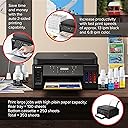
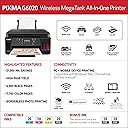
The Canon PIXMA G6020 is a wireless all-in-one MegaTank printer delivering ultra-high 4800x1200 dpi print resolution with up to 7,700 color pages per ink set. Designed for professionals and creatives, it offers cost-saving ink tanks, Alexa voice control, duplex printing, and a large 350-sheet capacity, making it ideal for high-volume, high-quality printing, copying, and scanning with minimal downtime and maximum convenience.

| ASIN | B07SQZNSQY |
| Additional Printer Functions | Copy, Scan |
| B&W Pages per Minute | 13 pages_per_minute |
| Best Sellers Rank | #8,311 in Office Products ( See Top 100 in Office Products ) #16 in Ink Tank Printers |
| Brand | Canon |
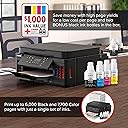
| Built-In Media | Wireless MegaTank All-In-One Printer, 4” x 6” Photo Paper Sample Pack (3 Sheets GP-701), Setup CD, Manual, and other documentation, Full Set of Ink Bottles (PGBK, C, M, Y) + 2 Bonus Black, (PGBK) Ink Bottles, Black Print Head, Color Print Head, Power Cord |
| Color | Black |
| Color Depth | 16 bits |
| Color Pages per Minute | 6.8 pages_per_minute |
| Compatible Cartridge | Canon GI-20 |
| Compatible Devices | Laptops, Smartphones |
| Connectivity Technology | USB, wireless |
| Control Method | Voice |
| Controller Type | Amazon Alexa |
| Customer Reviews | 3.9 out of 5 stars 4,667 Reviews |
| Duplex | Yes |
| Global Trade Identification Number | 00013803317824 |
| Hardware Interface | Ethernet, USB |
| Initial Page Print Time | 14 seconds |
| Ink Color | Black |
| Item Dimensions D x W x H | 14.6"D x 15.9"W x 7.7"H |
| Item Type Name | Inkjet Printer |
| Item Weight | 17.8 pounds |
| Manufacturer | Canon |
| Maximum Copies Per Run | Up to 99 Copies |
| Maximum Copy Resolution Black and White | 4800 dpi |
| Maximum Copy Resolution Color | 4800 x 1200 dpi |
| Maximum Copy Speed Black and White | 20 pages_per_second |
| Maximum Media Size | 8.5 x 14 inch |
| Maximum Print Resolution Black and White | 4800 x 1200 dots_per_inch |
| Maximum Sheet Capacity | 350 |
| Maximum print Resolution Color | 4800 x 1200 dots_per_inch |
| Model Name | PIXMA G6020 |
| Model Number | 3113C002 |
| Model Series | PIXMA G6020 |
| Number of Ethernet Ports | 1 |
| Number of Trays | 3 |
| Other Special Features of the Product | wireless |
| Output sheet capacity | 250 |
| Paper Size | 3.5” x 3.5”, 4” x 4”, 4” x 6”, 5” x 5”, 5” x 7”, 7” x 10”, 8” x 10”, Letter, Legal, U.S.#10 Envelopes |
| Print media | Paper (plain) |
| Printer Connectivity Type | USB, wireless |
| Printer Output Type | Color |
| Printer Type | Inkjet |
| Printing Technology | Inkjet |
| Processor Count | 1 |
| Resolution | 4800 x 1200 |
| Scanner Type | Flatbed |
| Special Feature | wireless |
| Specific Uses For Product | Office |
| Total USB 2.0 Ports | 1 |
| Total Usb Ports | 1 |
| UPC | 013803317824 |
| Unit Count | 1 Count |
| Warranty Description | 1-Year Limited Warranty |
| Warranty Type | Limited Warranty |
| Wattage | 15 watts |
S**M
Great cost saving printer. I'm replacing my laser printer with this one.
Review: Canon PIXMA G6020 MegaTank – A High-Value, Low-Cost Printing Solution Quick Summary The Canon PIXMA G6020 is a robust "supertank" printer that trades the convenience of cheap up-front costs for incredible long-term savings. The initial setup requires patience—specifically regarding tape removal and print head installation—but the payoff is a machine that prints at a fraction of the cost of a laser printer. With sharp text, quality photo output, and a massive ink supply included in the box, it is an ideal choice for those who want to stop worrying about the high price of replacement cartridges. Detailed Experience & Technical Observations Unboxing and Setup Caution When you first open the box, pay close attention to the inner lids; they contain vital diagrams for locating all the components. The setup requires some manual assembly: • Print Heads: The printer uses two print heads that resemble standard inkjet cartridges. One is tucked near the power cord in the top styrofoam, and the other is located underneath near the ink bottles. • Critical Tape Removal: There is a significant amount of protective tape. Most importantly, when you lift the top to access the print head carriage, there is a strip running the length of the interior. You must remove this very slowly. Pulling too fast can leave a fiberglass-like residue behind, which can interfere with the orange plastic piece that must be fully removed. Ink System and Long-Term Value The "MegaTank" system is impressively clean and easy to fill. Each tank is designed to hold exactly one full bottle of ink. • Capacity: The black tank is larger than the color tanks. Canon includes three bottles of black ink; you will use one for the initial fill, leaving two spares. All three color bottles (CMY) are used entirely during the first fill. • Cost Analysis: Based on my calculations over a projected 4-year period, this printer operates at one-half the cost per page of my laser printer. Even if I were to use only the included ink and then dispose of the printer, it would still be more economical than maintaining a laser printer or a traditional cartridge-based inkjet. Operational Quirks and Software • Control Panel Angle: The control face is adjustable, arching from horizontal to about 45 degrees. A key quirk is that the printer will not function unless the face is tilted at an angle or positioned horizontally; it cannot be left flat/closed during operation. • Power Management: It is important to press the power button and let the printer complete its shutdown cycle before unplugging it. While it can be left on for instant printing, those who print infrequently (like me) may prefer to power it down between uses. • Windows 11 Integration: The software installation was quick and non-intrusive. Unlike many modern printers, the software has not "nagged" me to sign up for subscription services or buy replacement ink—at least not yet. Print Quality and Duplexing • Sharpness: The native print quality is very sharp. Test pages show extremely thin lines with clear white space between them. • Scanning/Copying: Note that while the print engine is high-resolution, the scanner has limits. In my tests, ultra-thin lines that were visible on the original print appeared as solid blocks on the copy. This is expected unless using a specialized high-resolution scan mode. I used the copy feature on the printer. It might have done better if I used the scanner software in the computer where I could choose the resolution. • Auto-Duplex (Two-Sided): The printer handles two-sided printing by feeding the paper, printing one side, then rolling it back in to flip it. In my observations, it appears to print the second page first before finishing with the first page and ejecting the sheet. Paper Handling The front tray 250 sheets of standard paper up to 8.5" x 11" as well as envelopes and odd sizes of paper. For legal paper or heavier media, there is a standing rear feed. This is perfect for cardstock, postcards, and envelopes. Pros and Cons Pros: • Massive Ink Savings: Includes enough ink for roughly 2 years of moderate use (or 3-4 years of low use). • Clean Refills: The bottle-to-tank design prevents spills and messes. • Sharp Output: Excellent clarity for both text and photos. • Non-Intrusive Software: No aggressive sales pitches or "ink-as-a-service" pop-ups (at least not yet.) • Flexible Media: Rear tray allows for thick cardstock that usually jams in front-loading printers. • Large Paper Capacity: The 250-sheet drawer is much larger than typical home inkjets. Cons: • Tedious Setup: Numerous pieces of tape and a delicate internal removal process. • Interface Requirements: The control panel must be angled correctly or the printer throws an error. • Scan Resolution: The default copy/scan mode may not pick up the finest details that the print engine is capable of producing. • No ADF: Lacks an automatic document feeder for multi-page scanning. • The Display: The small, 2-line LCD screen is not backlit, making it very hard to read without a flashlight or bright overhead light. • WIFI: Setting up the WIFI is a bit tricky. I got mine to work, but after a failed attempt or two. I recommend looking for a YouTube video that walks you through step-by-step if you have trouble. Technical Specifications • Print Resolution: Up to 4800 x 1200 dpi for both black and color documents. • Print Speed (ISO): Up to 13.0 ipm (images per minute) in black and 6.8 ipm in color. • First Print Out Time: Approximately 9 seconds for black and 14 seconds for color documents. • Ink System: 4-color Continuous Ink Supply System (CISS) using GI-20 pigment black and dye-based color ink bottles. • Paper Capacity: Total capacity of 350 sheets (250-sheet front cassette plus 100-sheet rear tray). • Scanner Type: Flatbed Contact Image Sensor (CIS) with an optical resolution of 1200 x 2400 dpi. • Maximum Document Size: Flatbed scanner supports up to 8.5" x 11.7"; printing supports up to 8.5" x 14" (Legal). • Connectivity: 2.4 GHz Wi-Fi, Ethernet (100/10 Base-T), and Hi-Speed USB. • Mobile Support: Apple AirPrint, Mopria Print Service, and the Canon PRINT app. • Physical Dimensions: Approximately 15.9" (W) x 14.6" (D) x 7.7" (H) with a weight of 17.8 lbs. • Monthly Duty Cycle: Up to 5,000 pages. • Paper Weight Support: Plain paper from 17 to 28 lb; specialty paper up to 53 lb (approx. 200 g/m²). These official specifications from Canon detail the print speed, resolution, ink compatibility, and paper handling of the PIXMA G6020 printer.
K**L
Worth the buy.
I purchased this printer for a project I’m working on for my wife, where I plan to print around 600 photos for three photo albums of our son, spanning from birth to age 3. Here are my initial impressions after one day of use: **Neutral:** This is a full-sized printer. Initially, I had looked at a model designed specifically for 4x6 photos, but I opted for this all-in-one printer without realizing its larger size. This is entirely my own oversight. **Pro:** The setup process was incredibly straightforward. After removing a few pieces of tape and a single plastic cover, I installed the printer heads, filled the ink tanks, plugged in the device, powered it on, and connected it to my preferred device (PC or phone). The printer then ran a test print to prime the ink through the head, and the setup was complete. The entire process was quick and easy. **Neutral:** You will need paper for setup. Since my primary use is photo printing, I didn’t purchase A4 paper, but at least two sheets are required for setup. This isn’t a major issue, as most users will likely be buying the printer for multifunction use. In my case, I used two sheets of paper I had on hand from a previous work onboarding, so it wasn’t an inconvenience. **Pro:** The ink tanks are located at the front of the printer, which is a convenient feature. You can easily monitor the ink levels, which is extremely helpful. **Pro:** The accompanying app is very user-friendly. Once you initiate a print job, you can continue using your phone for other tasks without being tethered to the app. **Neutral:** I have printed 25 photos so far, and they have a distinctive "at-home print" quality. Personally, I prefer this, as the photos are vibrant and clear, exactly as they appear on my phone. However, it’s clear they were printed at home, which some users may not prefer. This does not detract from the printer’s performance, which produces excellent results. **Neutral:** It’s important to pay attention to the orientation of the photos you are printing, especially if you plan to print multiple photos at once (up to 20). Ensure each photo is cropped or rotated as desired before printing. By default, the photos will print in the orientation in which they were taken on your phone. I had two out of the 25 prints where the focus of the image was cropped out because I didn't verify the settings beforehand. Simply make sure the photos are correctly formatted before printing, adjusting the crop, rotation, or zoom as needed. Pro: The button hub and screen are mounted on a hinge, which provides great flexibility. This design allows for easy viewing and access when needed, but you can also leave it down if your operational needs require a more compact setup. This thoughtful feature enhances both usability and convenience. Overall, after just one day of use and 25 photos printed, I am very satisfied with this printer. It’s easy to use and provides great results. I would recommend it to anyone looking for a simple home printer. After completing the full 600 prints and using the printer for a longer period, I will update this review to discuss ink usage, maintenance, and any additional insights I may have. As of now, I am very pleased with its performance. This review has been brought to you in part by ChatGPT used to clean it up however the review is completely me. I wanted to add this for a level of honesty.
S**S
How Canon's Printer Broke My Computer and Cost Me an Extra $125
I've historically been a big fan of Canon's printers. I bought a Pixma model printer back in 2007, and it lasted until a few months ago. I loved the idea of this model's ink tanks. I purchased this particular Pixma in May 2022. I carefully followed each step of the instructions for setting up the wifi link between my laptop and the printer, and it all worked great. I haven't done a ton of printing since then, so I can't say too much about the print quality. It seems like I'm seeing some lines in the printed pages that my old printer didn't have. Also, the photos I printed seemed to be muted in color compared to my old printer. But I would need to do more printing and comparing to say too much. It basically was working good enough for the small uses I had put it to so far. Fast toward to this last Sunday when I replaced my wifi (because Comcast made me--the threat being to replace or lose my internet service). With the new wifi device, the laptop could not send jobs to the printer. So, I once again carefully followed the instructions to connect my laptop to the printer. This process involves downloading Canon software and running it. I did got the software again, and I followed the instructions exactly. As part of the process, at one point, Canon disables the internet access on the computer. It's supposed to be temporary while the software finds the printer. Only what ended up happening is that the software couldn't find the printer, told me to consult the manual, then closed WITHOUT RESTORING INTERNET. What I mean by not restoring the internet is that the router device no longer appeared anywhere on my computer. The router was still working and my computer could find all my neighbor's wifi's, but Windows did not even include my wifi router in the list of possible options to pick. Of course, I tried to call Canon support and they REFUSED TO EVEN TALK TO ME. They will not even put an agent on the phone unless you have a Canon web account. Requiring anyone to turn over personal data to provide support for their own defective device is completely unacceptable--even if I could have created such an account. But I could not create such an account. I did not have ANY internet access. (I don't own a cell phone.) Their automated system just hung up on me no matter what I said or tried. So I had to call local technical support, who could only fix this type of problem in my home. Which means paying a higher fee for an in-home visit. Canon broke my computer, and it cost me $125 to get it fixed. And the fix only cost $125 because I had a really good tech person come out. This was such a tough problem that I think it would have taken someone else a lot longer to figure out. Canon owes me that $125. Who thinks they will pay it? Bad Canon. Bad. Bad software. Zero support. Zero willingness to fix their mistakes. So-so printer.
J**S
How to fix connection problems with Canon G6020 (G6000 Series)
I am feeling very positive about this printer for my own needs--low cost of ink being a major plus--but the printer has its downsides, all mentioned in other reviews, which you should be aware of before you buy one. Downsides: 1. Printing is SLOW. Not a problem for my occasional home use, but you would probably want something faster if you do a lot of printing. 2. The LED screen is not backlit and can be hard to read if light conditions are not just right. It's OK, barely, where I have mine located, but you may need to keep a little flashlight handy. 3. The control panel flops down when you press the buttons. You have to hold the panel up with one hand and press the buttons with the other. The control panel is used mostly for copying, so be aware of this hassle if you intend to use that feature a lot. 4. The printer is configured by default to turn itself off after being idle for a period of time and to not turn itself back on automatically. You can vary that period of time up to 4 hours or disable "Auto Power Off", which means it stays on until you press the power button. However, I recommend that you enable "Auto Power On". Auto Power On puts the printer into standby mode after the Auto Power Off time instead of turning it completely off so that it can wake up when a print request is received. Why is this not enabled by default? 5. The connection between your computer and the printer, if not set up correctly, may be lost when the printer is turned off. Unfortunately, the documentation from Canon is crap, and I could not find anything there that says how to fix the problem. Here's how: FIXING CONNECTION PROBLEMS The setup process provided by Canon worked very smoothly, but the next day I was unable to connect to the printer. It appears that the problem was that the install program set up the printer port using the printer's IP address, which is assigned by my router and can change each time the printer is turned on. The port needs to be set up instead using the printers name, which does not change. I fixed it by deleting the printer from the Windows "Devices and Printers" applet of the control panel and rerunning the Canon install program. Why it used the IP address the first time and the Printer Name the second time is unclear, but it worked. In any case, rerunning the install program is a bit of a hassle, so here is an easier way to fix it on a Windows system. 1. Right-click on the icon for the printer in the Windows "Devices and Printers" option of the Control Panel and select "Printer properties". 2. Click on the "Ports" tab. 3. Select the port for the printer, which is probably labeled "Canon G6000 Series", and click the "Configure Port ..." button. 4. Look at the box labeled "Printer Name or IP Address". If you see four numbers separated by dots such as 192.168.1.12, that is an IP address and needs to be replaced with the printer name. My printer's name is a 12-character code: 915CFC000000. You can find your printer's name from the printer's LED screen: Press the button with the tools icon; press right arrow until "System Information" appears; press OK; press right arrow until printer name appears.
D**E
In-depth review
I just received a PIXMA G6020 from Amazon and wanted to provide some information given the disparity of reviews I saw prior to making the purchase. This review is only about the initial process of setting up and printer performance. Set up Some of the reviews mentioned difficulty in setting up wirelessly, and I thought I might provide some details for potential consumers. First, Canon still provides a hard copy step-by-step instruction booklet which is helpful. Within the booklet are scan codes that can be followed or a web address to see a sequence of photographs that walk you through the setup process. I used this because some of the pictures in the manual were difficult to discern, but the photographs were very clear. Once the machine is set up and plugged in (no cables attached to any computers), Canon provides a web address which is very clean and easy to negotiate. A clearly marked “set up” button takes you to a page where you select the kind of machine you have. You’re supposed to enter some letters, but none of these are PIXMA. That was a bit confusing, but scrolling down you can see a G020 button and clicking on that opens up a window with a start button and a picture of the printer so there can be no confusion. Clicking on the start button begins the process of setting up from the pictures I mentioned above to downloading the drivers and joining the printer to the wireless network available in your home. The process went very smoothly with little input from me until an error message appeared which was associated with my Internet security system blocking the printer from the network. Importantly, there is a window from Canon during the setup process that warns you of this before it happened. As a quick aside, the hard copy manual was clearly adjusted to include anticipated problems people might have because there are several places where warnings about problems (both Windows and Mac) occur with suggested resolutions. I was impressed by that because often a set of documents are prepared and released without any consideration of problems consumers might have on their different systems. Anyhow, clearing the security issue, the download completed, and the printer was available on my computer already set up as the default. The wireless connection to my home network worked great. As I headed downstairs away from the printer and our router to our second computer, the process went equally well and again the printer was available for function on the second machine. Scanning Canon provides “IJ Scan Utility” as a rudimentary scanning software that allows you to direct the printer to scan documents or photographs. If you are scanning documents, multiple sequential scans are permitted (no document feeder, so you have to change the scanned pages yourself). These are combined into the same PDF when you save them. Both documents and images are by default loaded into a default Windows temporary documents folder which gratefully pops open when you are done. Otherwise, you would have no idea where your documents or images went. That’s a bit of a drawback because I could not find a way to change the default download folder, but since it opens, a quick drag-and-drop remedies the situation. Printing and copying I agree with the other reviewers that the panel on the printer should’ve been backlit because it’s hard to read. Printing quality is good and fast, although I did not try any pictures. The copying function is simple as well. Just put the document on the scanner and click either the “black” or “color” button on the panel of the printer itself to produce a copy of the document. Bottom line At least initially, this machine was exactly as advertised. It was straightforward and easy to set up, contained warnings and resolutions where they expected you might have trouble and then produced high quality printed documents. Some may not like that you have to interact with Canon via the web to get everything set up wirelessly, but to me it seemed like a really good way to ensure the process went smoothly which was the case for me. Hope this helps everyone if you’ve been on the fence about what printer to buy given the many bad reviews that this and less expensive printers have. So far, this one completely met my expectations. If the machine fails in the future, I will update the review.
R**N
Good Printer, Great Value
I needed to replace an old Canon PIXMA printer that had failed with a cryptic error. My criteria for a new printer were: "mega" tanks -- even though my ink cost wasn't terrible high, but the individual price of cartridges was irritating Both a front cassette and a rear feed for paper. It is a mistake to assume that a printer has both. Suggestions that envelopes and photo paper would be put in the cassette seemed ridiculous for my needs. A flatbed scanner. I own a separate autofeed scanner. WIFI connections, and compatability with Apple AirPrint, and Chromebook printing. The Canon G6020 had all of those items plus: Two sided printing, auto "off" with network wake up, a 250 sheet cassette, and USB and LAN cable connectors. It also seems to have sensors for everything; for example, when either the cassette is inserted, or paper is added to the rear feed, the printer prompts for paper size verification. (Fortunately, the prompt for paper size and type can be turned off.) The printer also comes with what must be an almost a lifetime's supply of black ink. Photo printing is very good, though slow on "best" photo mode. The printer has can present a net "home page" for many setup and status functions; the default password is its serial number. Cons: The LCD screen is tiny and dark. At the very least, it should have a back light. I found the LCD Menus are confusing. Setup can be a little confusing. I ended up using the manual mode for configuring the WIFI connection. (Thank goodness for WPS, entering a password on the LCD would have been problematic) There is a cautionary notice warning to transport the printer upright lest some ink were to spill. The tanks seem well capped, and probably wouldn't leak, but I am not about to test it. Summary, Once setup and connect, the printer is great. It is definitely fast enough for home use and all of the printing that I have done has been sharp and unbanded. The black ink is pigment based and seems to be waterproof; the color, dye based, and will bleed slightly when water is applied. A major consumer magazine down-rated this model compared to others costing significantly more, and oft times having fewer features; most of the magazine's quibbles seem simply wrong in this case. Replacement ink from Canon on Amazon seems extremely reasonably priced ($17 for 170ml / 5.75oz of black ink, $11 for the 70ml of color ink.) Added Note: Others had complained, and I encountered... I had an issues with the printer's wifi connection, which I believe that I have resolved. My router was set to use a "smart" choice between 2.4 & 5Ghz (both using the same SSID) for device communication. I suspect that this was causing problems with the printer's 2.4Ghz only network chip. The problem seemed to clear up when I disabled the "smart" feature on the router; nonetheless, I decided to run a cable from the router to the printer and change the printer's LAN setting to use that. I have had no problems since. Though I am not using a mesh router, I could see this being a problem with some of those too.
B**T
2nd Worst Printer I've Ever Had
I am so disappointed with this printer. I’ve had several Canon printers over the years and all but the last 2 have been wonderful. This G6020 is the 2nd worst printer I’ve ever had (the PIXMA TR7020a was the worst but that’s another story). I got this printer especially because it has Megatanks – so I wouldn’t have all those little empty plastic cartridges to try to find a way to recycle – and because it has a 2nd paper tray. The worst problem is that it continues printing even when it “thinks” it’s out of ink, printing blank pages. But it has plenty of ink and a test page comes out fully printed. So, if I’m printing a large document I have to watch the printer or I risk ending up with a lot of blank pages. This has happened several times and I’ve only had this printer 6 months, and I don’t print a whole lot. The Trouble Shooter is useless. I ran it, got message “Problem with printer Detected There might be problems with Canon G6000 series. Windows will take additional steps to further troubleshoot." But then it said “Issue not found” for all the possible issues. Update: 4/11/26 I can't even get it to print any longer. It has ink and paper, but the error light keeps turning on. I open and close the flap for the rear tray and the error light goes off, but when I try to print again it goes back on. And even when I can get it to print, which is rare, all the print comes out green even though I request color and all the tanks are full; if I request black it comes out blank although the black ink tank is full.
D**O
Long Term Review - 2022 Purchase
Have had several Canon Printer products over the years, also Brother, HP, IBM, Printers, in both business and personal applications. Toner was the preferred media for printing, and ink jets weren't up to par for fast or clean printing, and were expensive to run large volumes. This printer changed my mind. I obtained this for SOHO, and due to it's ability to just refill the tank instead of purchasing expensive cartridges of either toner or ink jet (the printers were always cheap because the brains of the printer was really in the cartridge!). Over the years we've printed thousands upon thousands of pages, quickly and efficiently using this printer. I keep my Macs/iPhone in color mode, and get what I want, even if it's a B/W page...the printer doesn't waste color dye to print. Consumption has been extremely low, and the big tank for black ink is great. Even color printing, the color tanks have only needed filling once in a while...(your mileage may vary). I've not had any issues using this as an air printer or network printer. Set up and function is on par with most vague menu's and html page setups of all printers...they're all lacking, but this one is pretty straightforward. It maintains a signal well on wifi, but also has a cat 5 jack. The scanner feature works well, and offers the same features as most in this price point, and the scan quality is good when adjusted for things like contrast, etc. The noise level is very quiet, the pages are printed fast and dry. It's lasted longer than any other printer I've used, as most get obsolete or show their age after 3 or 4 years. This one appears to have another 4-5 years left at soonest. My only complaints: -LCD panel is hard to read in low-light, it needs a backlight. It is adjustable to get out of the way if it's used as a desk top. It's lightweight and easy to position on any desk or stand. -Paper tray capacity is small, and the way it holds paper is rather loose and not a clean stack...although it's never seemed to matter, it grabs a sheet easily. An excellent asset for our needs, and it produces high quality crisp and dry printing, in two sided or single sided printing (400 page tax returns!) The photo quality is also excellent, printing on glossy or matte, and it can handle postcards and envelopes easily in its rear feed. It also produces high quality business cards on card stock. Filling is easy, the hardest part is getting the bottles open without splattering something pulling the foil seals off...but filling the tank is mess free. The printer lets you know when it needs attention, and the clear window tanks are easy to read at a glance as well. To date, I've had zero issues with misfeeds, paper jams (really? NO paper jams??? yeah, none) or any streaking or over inking of pages. The print head is laser printer quality in an ink jet. I waited to review this for a while, since it's hard to get behind any printers that are either expensive up front, or run up the costs down the road. We've used OEM dye/ink, and have also had good luck with aftermarket inks. Hope this was helpful to you...
Trustpilot
1 week ago
1 week ago